Install
Get the version for your computer at rbloc.app.
| Computer | Download |
|---|---|
| Windows 10 · 11 (64-bit) | Windows |
| Mac (Apple silicon, M1 or later) | macOS |
It does not run on Intel Macs.
Windows
- Open the
RBLOC-Setup-….exefile you downloaded. - If a blue window titled “Windows protected your PC” appears, click “More info” → “Run anyway”. Windows shows this once for newly released apps, the first time you install.
- Click “Install” and wait. When it finishes, an RBLOC icon appears on your desktop.
Mac
- Open the
RBLOC-….dmgfile you downloaded. - Drag the RBLOC icon into the Applications folder.
- Open RBLOC from the Applications folder. If your Mac says it is an app downloaded from the internet and asks whether you want to open it, click “Open”.
Once, the first time you open it
The first time you open the app, the place where “Play” normally sits shows “Downloading voice data for the first run” and a progress bar. This is the data that creates the robot's voice (about 380MB).
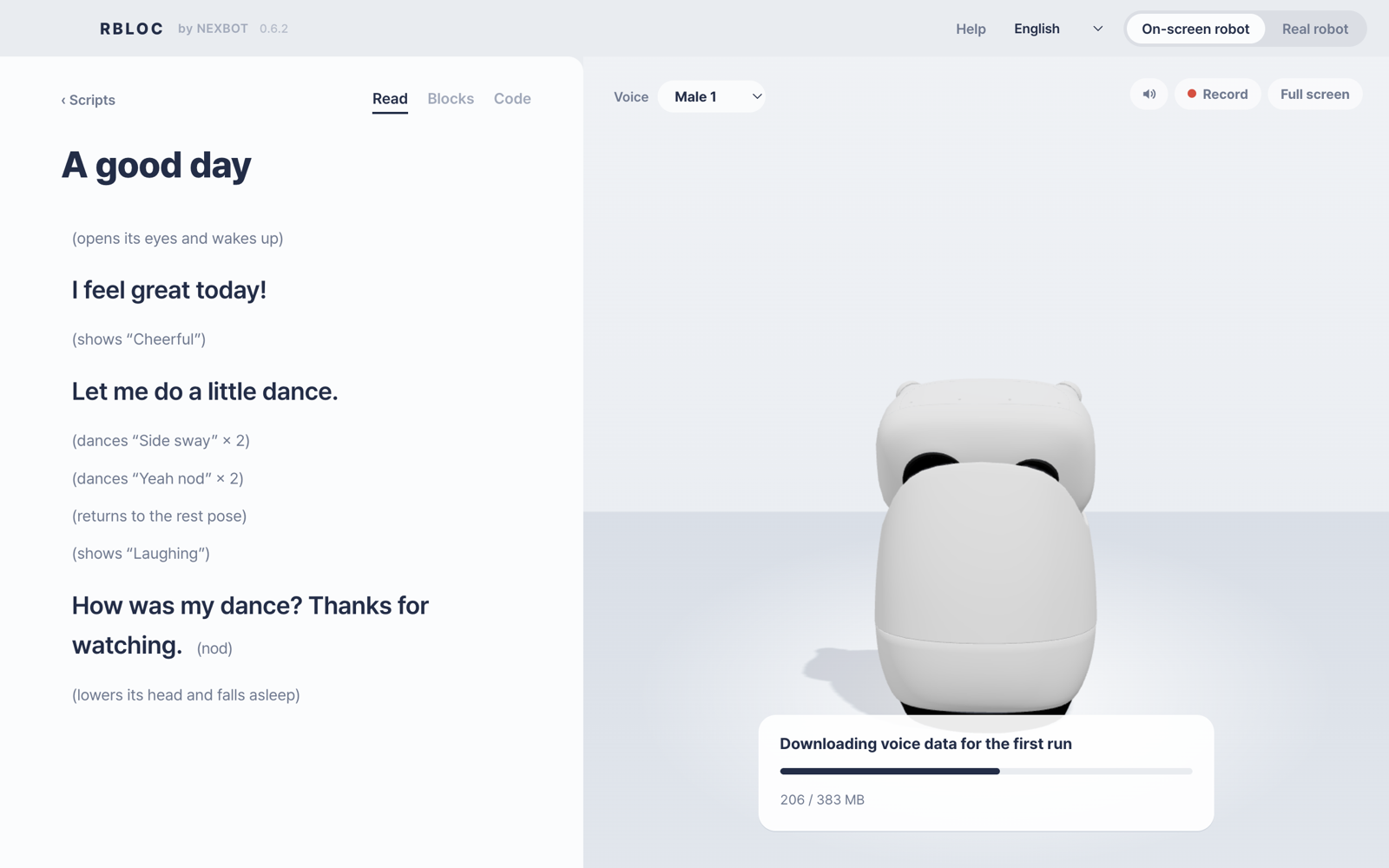
- Open the app while you are connected to the internet. You can still look at the script list and the blocks while it downloads.
- It's fine if the download is interrupted. Open the app again and it picks up where it left off.
- It downloads only once. After that the app works without the internet.
To use a real robot, the app downloads one more thing the first time you press “Real robot”: the program that moves the robot (about 200MB). If you only use the on-screen robot, it is never downloaded.
New versions arrive by themselves
Every time it opens, the app checks for a new version and, if there is one, downloads it in the background. When the download is done, “Updating automatically. Please wait a moment.” appears, the app closes, and it reopens as the new version. There is nothing for you to do.
- It never interrupts the robot in the middle of a performance. It switches afterward.
- The scripts you made stay as they are.
- The current version is shown in small print next to “by NEXBOT” in the top bar.
Uninstall
- Windows: Settings → Apps → RBLOC → Uninstall
- Mac: move RBLOC from the Applications folder to the Trash
Your scripts and the downloaded voice data stay on the computer after you uninstall. Install again and you carry on where you left off.