Record a video
You can save the on-screen robot's performance as a video file with sound. Use it for a class presentation, a note to families or a social media post.
Recording
- Open a script and choose “On-screen robot”.
- Press “● Record” at the top right of the stage. The robot starts performing from the beginning.
- When the performance ends, the recording stops by itself and the app asks where to save it.
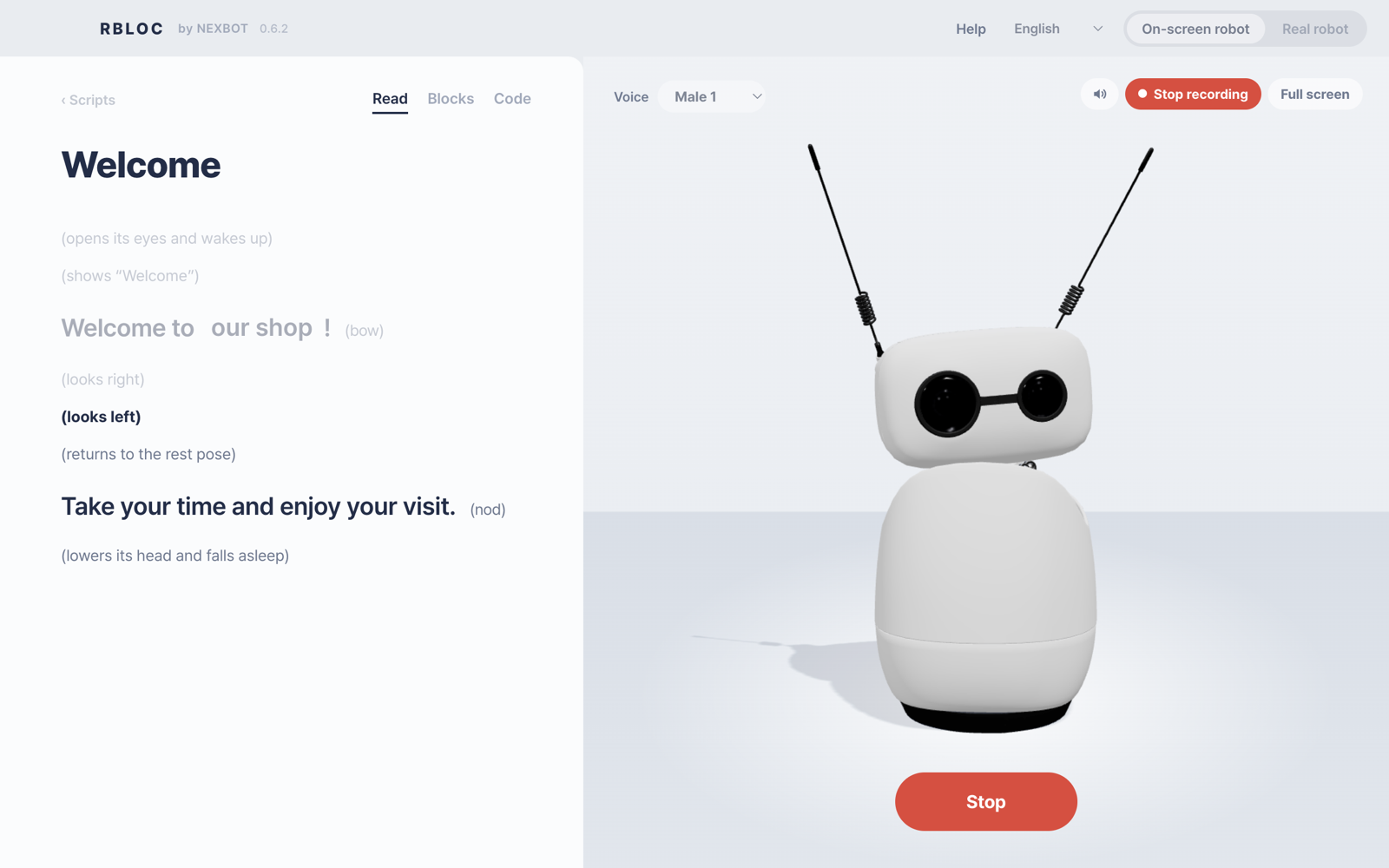
- To finish early, press “Stop recording”.
- The file is saved as an mp4 (vertical, 1080). It opens on phones and in most programs.
- If you turn down what you hear with the sound button, the recording still keeps the original volume.
Full screen
Press “Full screen” to show only the stage, large. Use it to put the robot on the big screen at the front of the classroom. Press Esc or “Exit full screen” to come back.
Sharing scripts
- Hover over a row in the list and press “Export” to save one script as a file (
.rbloc.json). - Use “Select” at the top right of the list to pick several and export or delete them all at once.
- Bring in a file you received with “Import from file” below the list.
This is how you collect the scripts your students made and play them one after another on the teacher's computer.