Blocks one by one
Press the “Blocks” tab above the script to open the block view. Take blocks out of the drawer on the left and snap them under “▶ when started”. They run in order, from top to bottom.
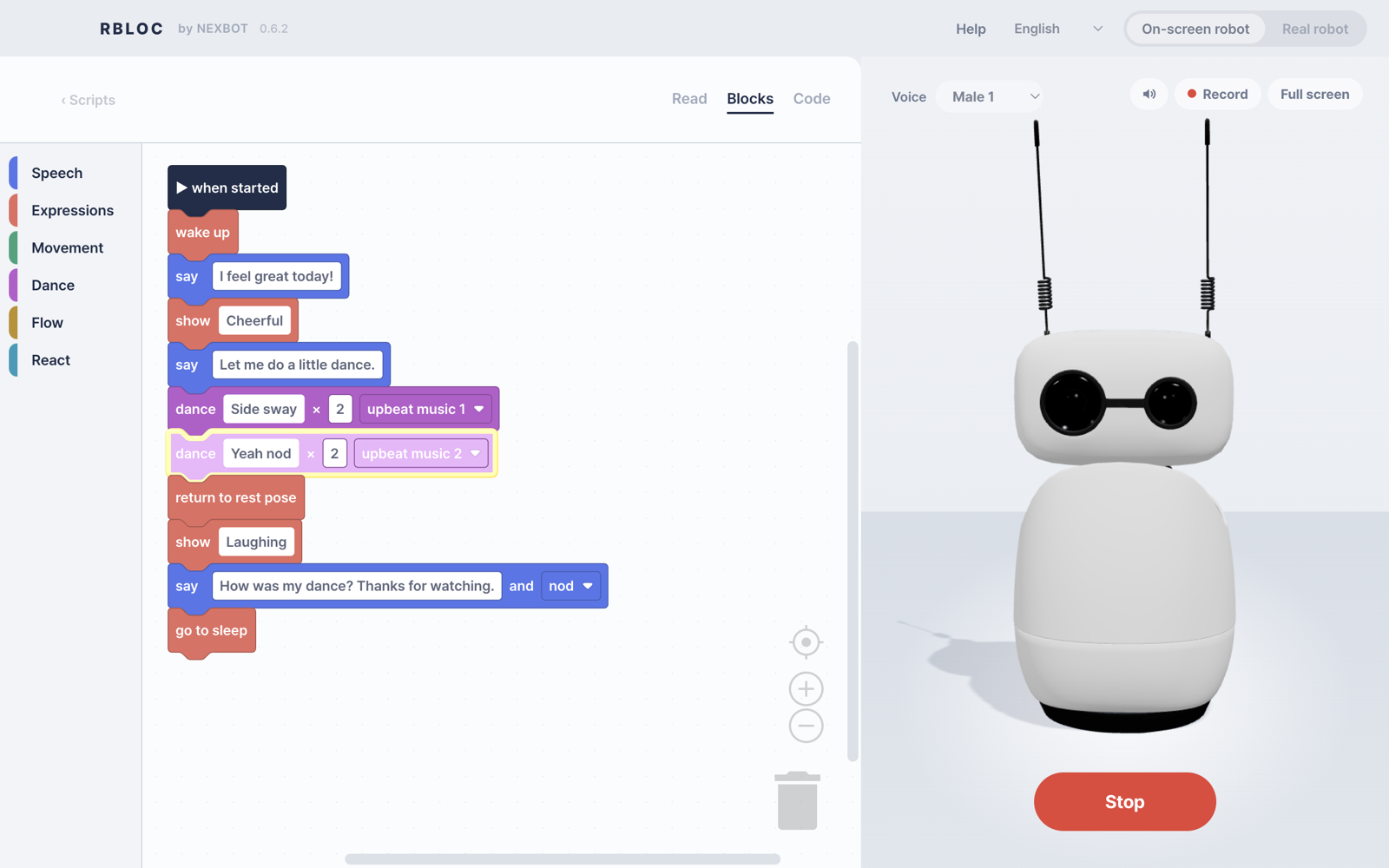
Loose blocks
Blocks that are not attached to “▶ when started” do not run. If you want to set a block aside for a moment, just pull it off to the side.
Speech
| Block | What it does |
|---|---|
| say ○○ | The robot says the text you typed out loud. |
| say ○○ and △△ | The robot makes a gesture while it speaks (nod, tilt head, wave antennas and so on). |
Speech is read in the script's language. If you mix a few words from another language into a script, they are still read naturally.
Expressions
| Block | What it does |
|---|---|
| wake up | The sleeping robot opens its eyes and lifts its head. Use it as the first block of a script. |
| go to sleep | The robot lowers its head and falls asleep. Use it as the last block. |
| show ○○ | More than 80 expressions, such as Cheerful, Curious, Shy and Surprised. Click the field and the on-screen robot shows you a preview. |
| ○○ × △ | A short gesture, such as nod, shake head or bow, done several times. |
| return to rest pose | After an expression or a dance, the robot faces front and sits up straight. It's good to put this before a spoken line. |
Movement
| Block | What it does |
|---|---|
| look ○○ | Sets the direction the robot looks. Click the field to open a pad where you set it by dragging. |
| tilt head ○○ | Tilts the head to one side. |
| turn body ○○ | Turns the body. |
| set antennas ○○ | Spreads the two antennas apart or brings them together. |
For speed, choose slowly, normally or quickly. To keep the robot from getting hurt, a move that goes past its range is carried out only as far as the range allows, and the app tells you.
Dance
| Block | What it does |
|---|---|
| dance ○○ × △ ♪ | 20 dances. For music, choose upbeat music 1–3, light music 1–3 or no music. |
When you snap dance blocks one after another, the music keeps playing without a break.
Flow
| Block | What it does |
|---|---|
| wait ○ sec | Pauses for a moment. |
| repeat ○ times | Does the blocks inside it several times. |
| repeat forever | Keeps going until you press “Stop”. Good for a greeting robot at a shop entrance. |
| at the same time | Does two rows at once. Use it to turn the head while speaking, for example. |
| do one of these | Picks one of the two rows each time. A little different on every run. |
React
| Block | What it does |
|---|---|
| wait until ○○ is pressed | A button appears under the stage, and the script moves on when it is pressed. |
| when on-screen button ○○ / △△ is pressed | Two buttons appear, and the robot does the blocks for the one you press. Use it to make a quiz. |
| if it sees a face … else … | Does one thing or another depending on whether the robot's camera sees a face (on a real robot). |
Good to know
- Undo: Ctrl+Z (⌘Z on a Mac)
- Delete a block: drag it back to the drawer, or press Delete
- From the script to a block: click a line in the script to jump straight to its block.
- Code: the “Code” tab shows the contents of the script as text, and you can copy it.