Your first script in 5 minutes
1. Pick a sample
The list is empty the first time you open the app. Press “New script” at the bottom to see what you can choose.
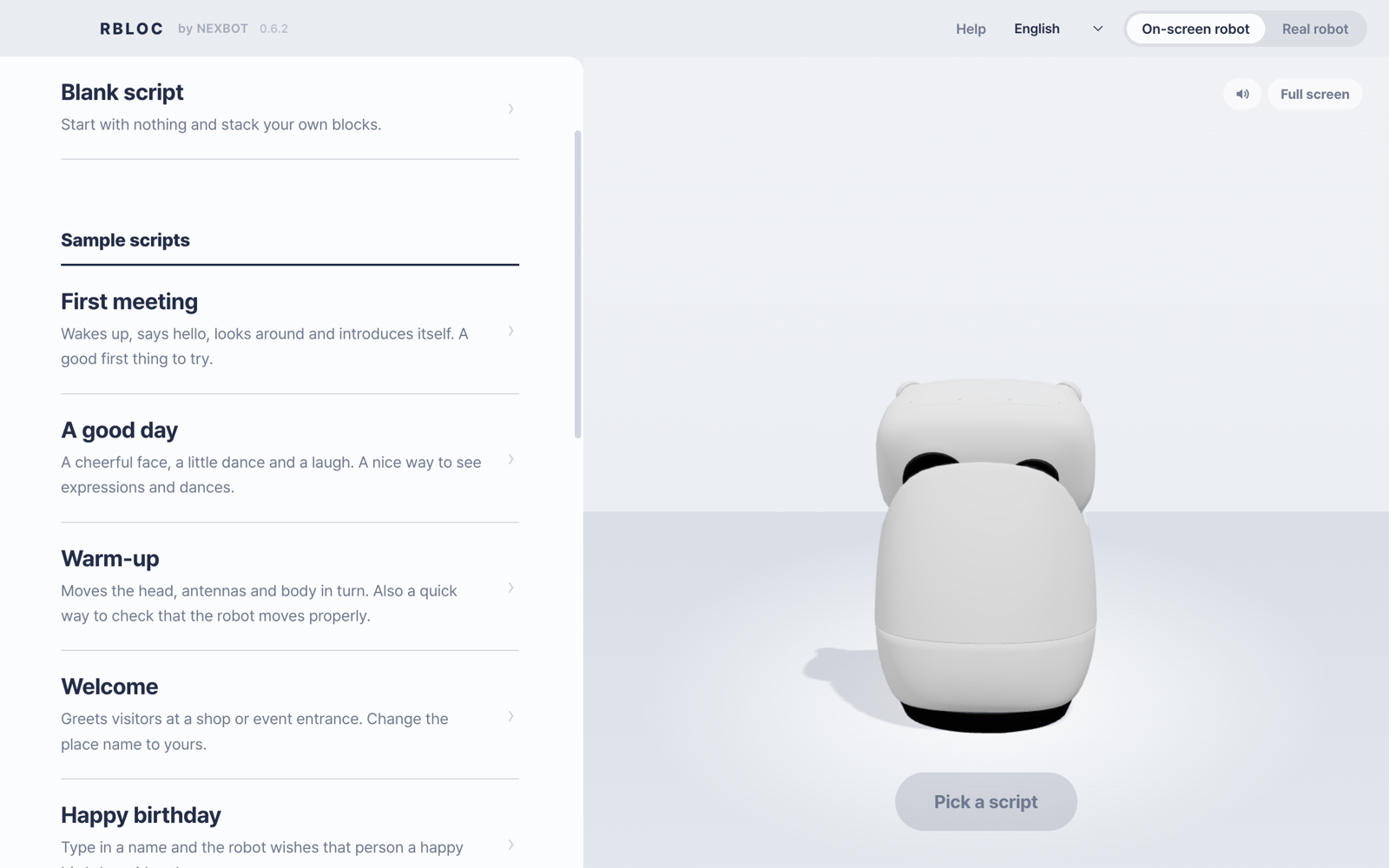
- Start from scratch — begin with a blank script.
- Sample scripts — short ones you can use right away, like a greeting, a birthday wish or a quiz.
- Story time — fairy tales told by the robot (The Three Little Pigs, Pinocchio, Snow White).
If this is your first time, try “A good day”. It's a nice way to see what expressions and dances look like.
2. Press “Play”
Press “Play” under the stage on the right. The on-screen robot opens its eyes and starts to perform.
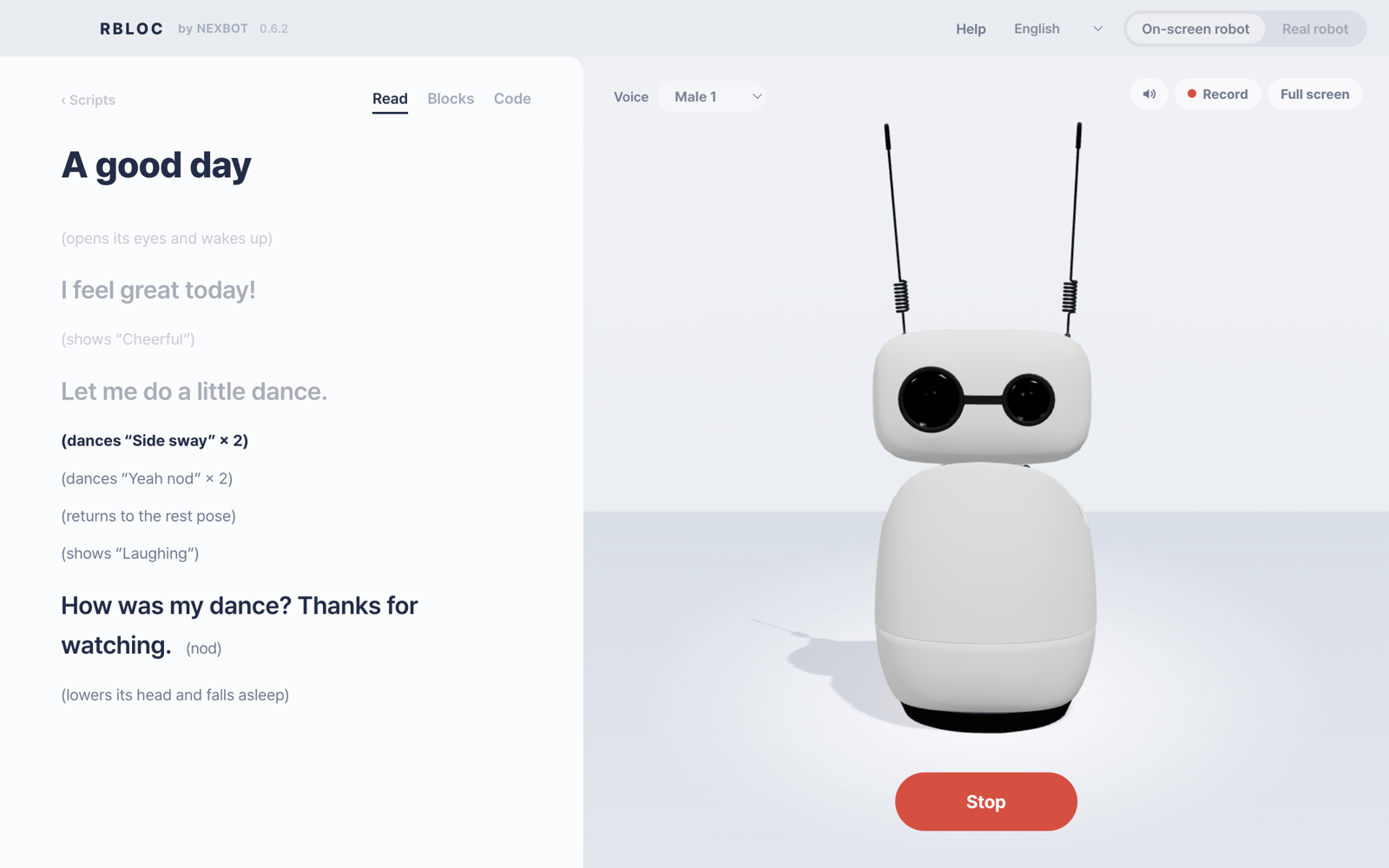
- In the script on the left, the current line is highlighted in yellow.
- To stop, press the red “Stop”.
- If it's too loud, hover over the speaker icon at the top right of the stage and turn it down.
3. Change it to your own words
Click a spoken line in the script and the app switches to the block view with that line selected. Click the text, change it to your own words, and press “Play” again.
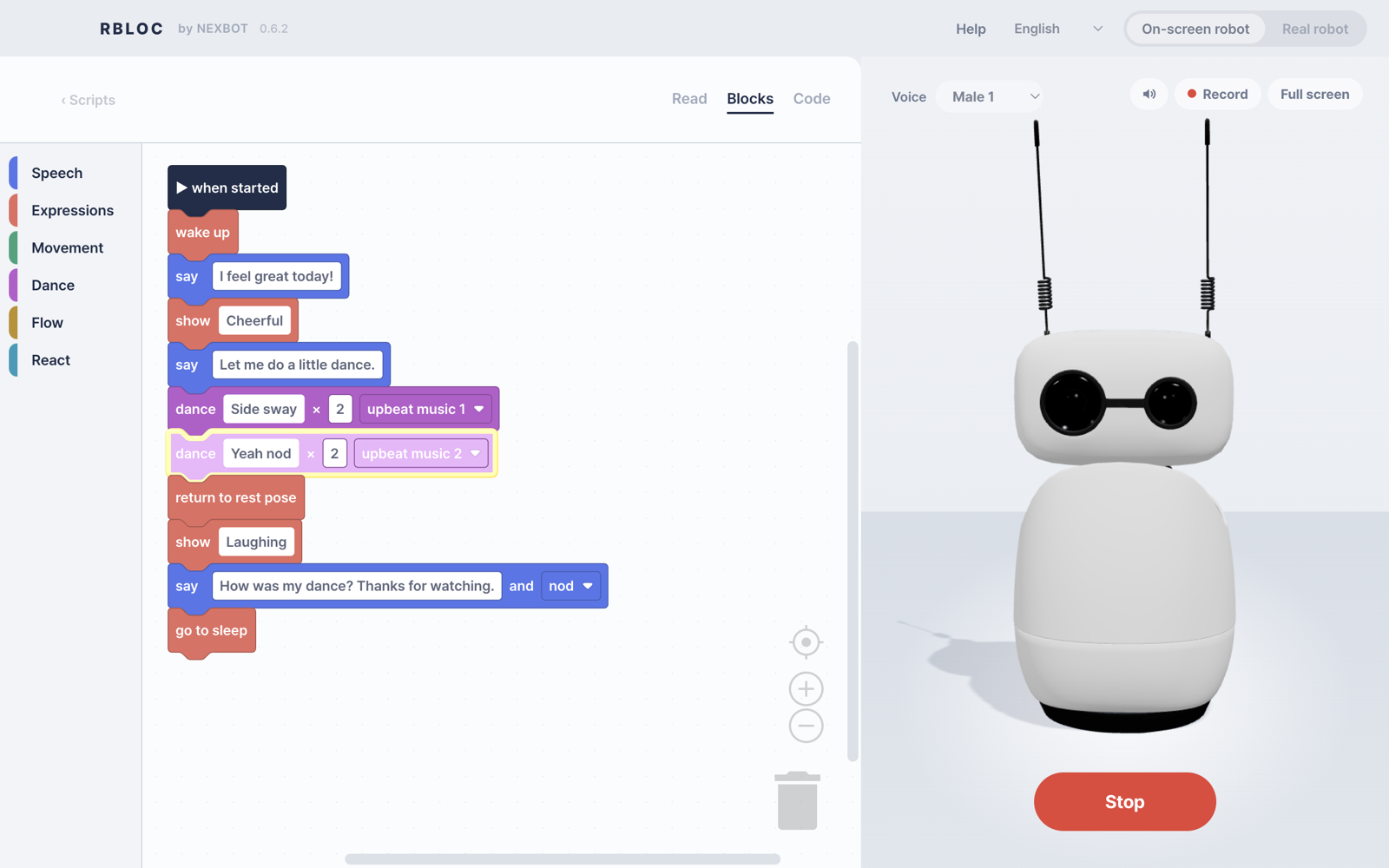
Some samples have blanks left open, such as a name or a place. You can fill those in right above the script. Try putting a friend's name into “Happy birthday”.
4. Choose a voice
Under “Voice” at the top left of the stage, choose from Male 1–5 and Female 1–5. The choice is remembered separately for each script.
Saving is automatic
There is no save button. Everything is saved as you change it. To go back to the list, press “‹ Scripts” at the top left.
Next
- Blocks one by one — what each block does
- Connect a real robot
- Record a video