First lesson — Our class greeter robot
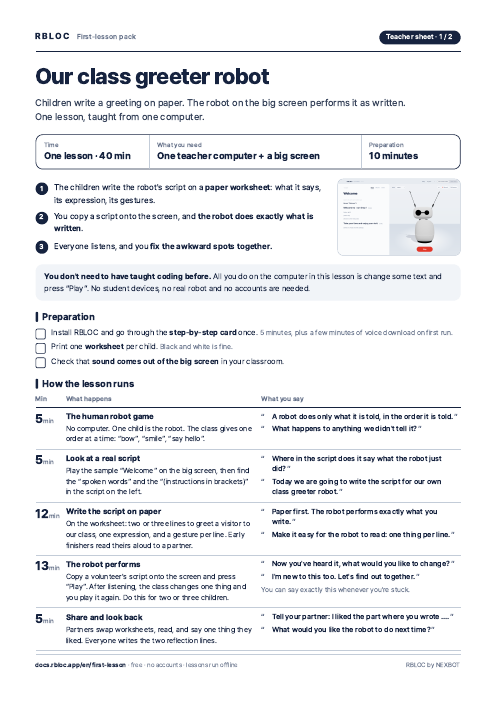
The children write a greeting on paper, and the robot on the big classroom screen performs it exactly as written. It is a 40-minute lesson taught from one teacher computer.
You don't need to have taught coding before. All you do on the computer in this lesson is change some text and press “Play”. No student devices, no real robot and no accounts are needed.
| Time | What you need | Preparation |
|---|---|---|
| One lesson · 40 minutes | One teacher computer + a big screen | 10 minutes |
Get the first-lesson pack PDF, 5 pages · prints in black and white · no sign-up
What the lesson is
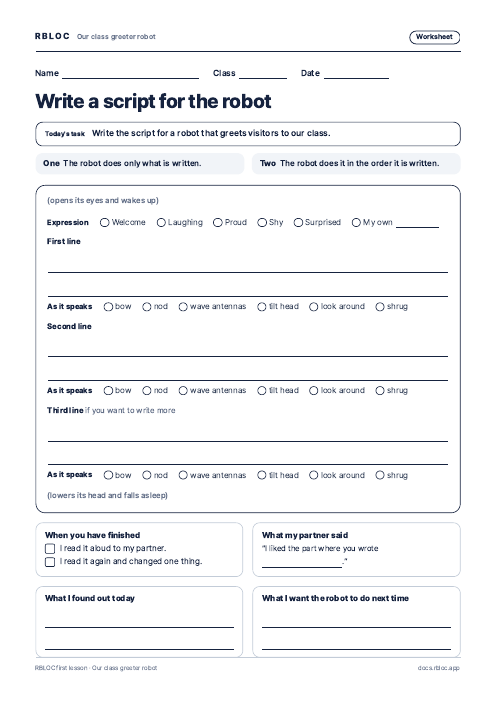
- The children write the robot's script on a paper worksheet: what it says, its expression, its gestures.
- You copy a script onto the screen, and the robot does exactly what is written — it speaks and moves.
- Everyone listens, and you fix the awkward spots together.
Preparation (10 minutes)
- Install RBLOC on your computer and go through the “Five steps” below once, start to finish. It takes 5 minutes. The first time the app opens, it spends a few minutes downloading the voice data, once only.
- Print one worksheet (page 3 of the pack) per child. Black and white is fine.
- Check that sound comes out of the big screen in your classroom.
How the lesson runs
| Min | What happens | What you say |
|---|---|---|
| 5 | The human robot game. No computer. One child stands at the front as the robot. The class gives it one instruction at a time: “bow your head”, “smile”, “say hello”. | “A robot does only what it is told, in the order it is told.” “What happens to anything we didn't tell it?” |
| 5 | Look at a real script. Play the sample “Welcome” on the big screen, then find the “spoken words” and the “(instructions in brackets)” in the script on the left. | “Where in the script does it say what the robot just did?” “Today we are going to write the script for our own class greeter robot.” |
| 12 | Write the script on paper. On the worksheet: two or three lines to greet a visitor to our class. The children choose one expression, and a gesture for each line. Anyone who finishes reads theirs aloud to a partner. | “Paper first. The robot will perform exactly what you write.” “Make it easy for the robot to read: one thing per line.” |
| 13 | The robot performs. Copy a volunteer's script onto the screen and press “Play”. After listening, the class changes one thing and you play it again. Do this for two or three children. | “Now that you've heard it, what would you like to change?” “I'm new to this too. Let's find out together.” |
| 5 | Share and look back. Partners swap worksheets, read, and say one thing they liked. Everyone writes the two reflection lines. | “Tell your partner: I liked the part where you wrote ….” “What would you like the robot to do next time?” |
Words you can use, just as they are, when you're stuck
“I'm new to this too. Let's find out together.” Working it out in front of the children is the best example this lesson can give them.
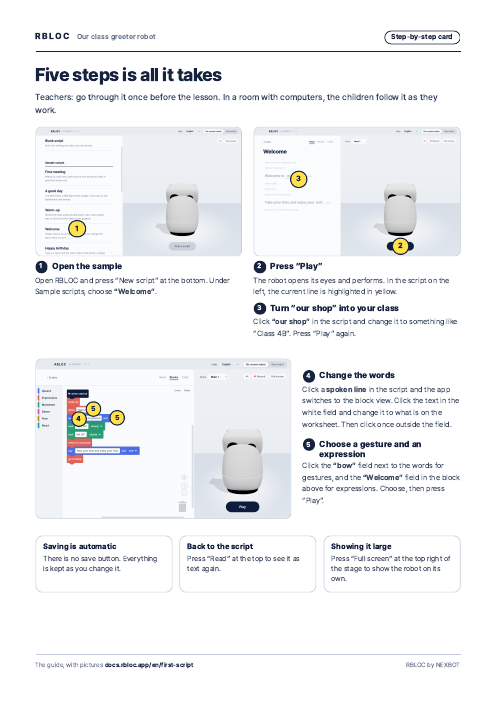
Five steps — try these yourself beforehand
- Open RBLOC and press “New script” at the bottom. Under Sample scripts, choose “Welcome”.
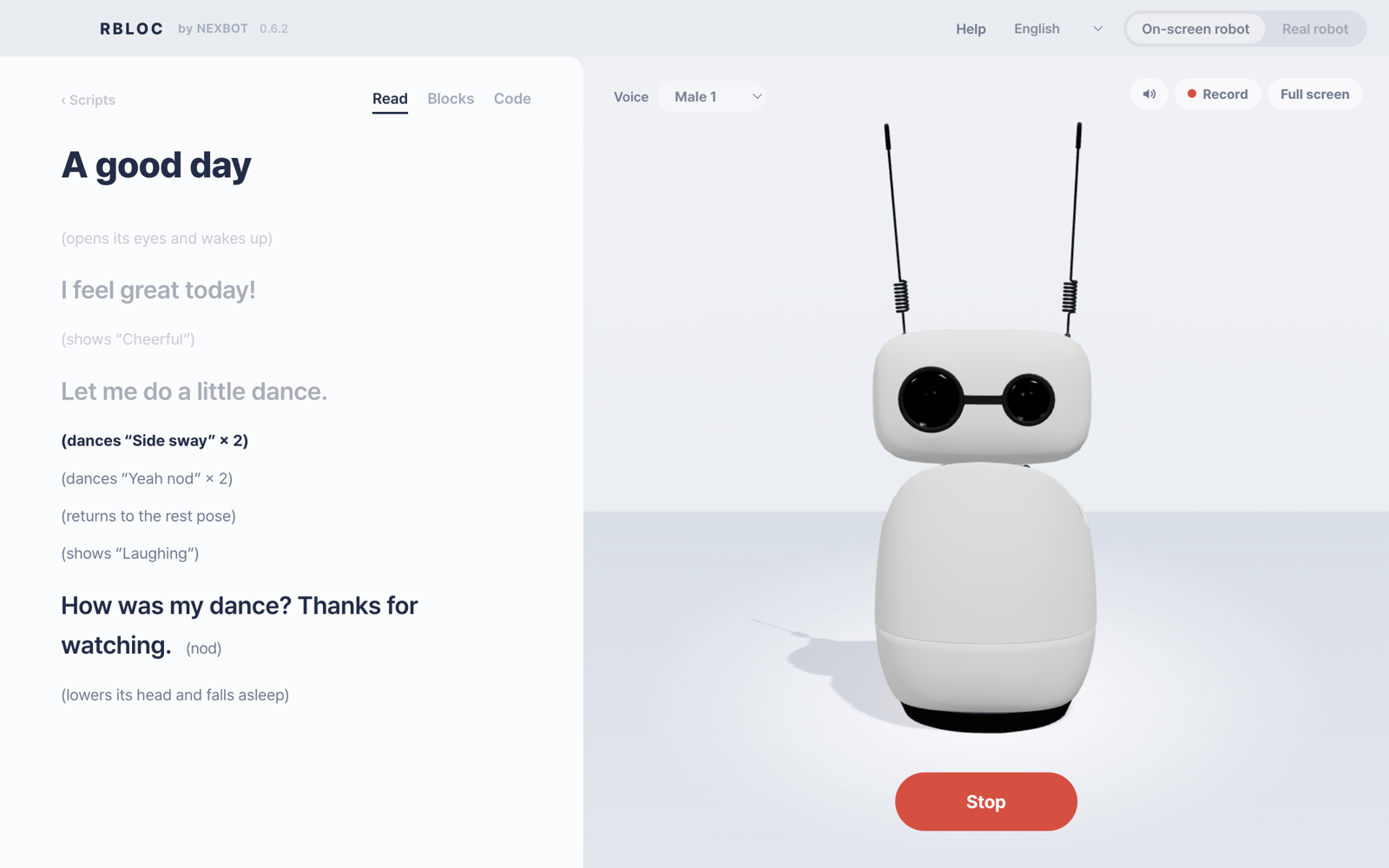
- Press “Play”. The robot opens its eyes and performs. In the script on the left, the current line is highlighted in yellow.
- Click “our shop” in the script and change it to something like “Class 4B”. Press “Play” again.
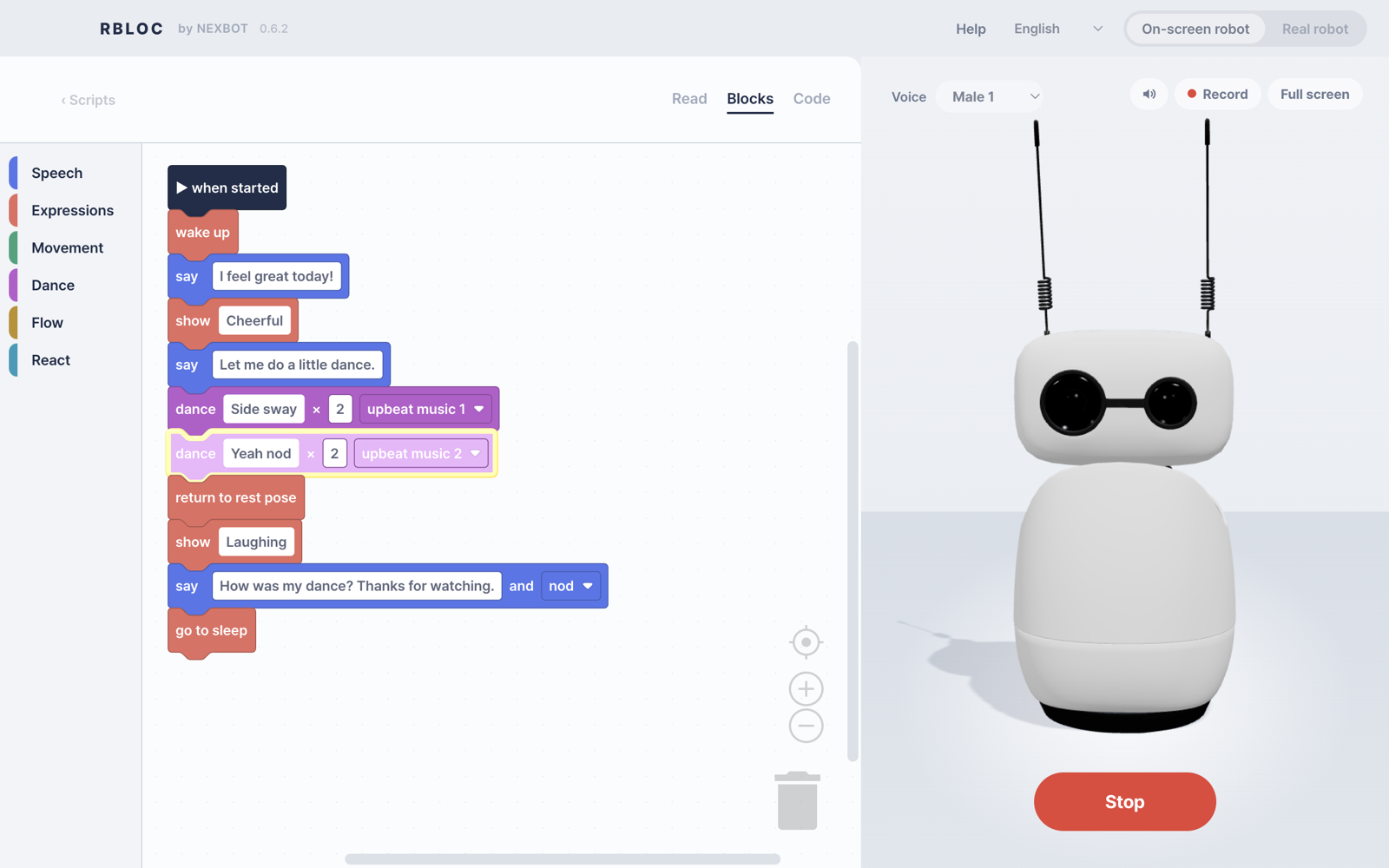
- Click a spoken line in the script and the app switches to the block view. Click the text in the white field and change it. Then click once outside the field.
- Click the “bow” field next to the words to choose a gesture, and the “Welcome” field in the block above to choose an expression. Choose, then press “Play”.
There is no save button. Everything is kept as you change it. Press “Read” at the top to see the script as text again, and press “Full screen” at the top right of the stage to show the robot on its own, large.
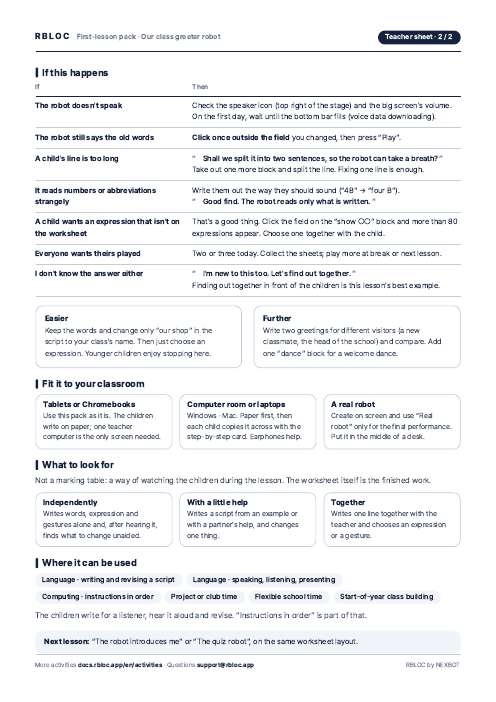
If this happens
| If | Then |
|---|---|
| The robot doesn't speak | Check the speaker icon at the top right of the stage and the volume of the big screen. If this is the first day the app has been opened, wait until the bar at the bottom fills up (it is downloading the voice data). |
| I changed the text, but the robot says the old words | Click once outside the field you changed, then press “Play”. |
| A child's line is too long | “Shall we split it into two sentences, so the robot can take a breath?” Take out one more block and write the line in two parts. |
| It reads numbers or abbreviations strangely | Write them out the way they should sound (“4B” → “four B”). “Good find. The robot reads only what is written.” |
| A child wants an expression that isn't on the worksheet | That's a good thing. Click the field on the “show ○○” block and more than 80 expressions appear. Choose one together with the child. |
| Everyone wants theirs played | Today, only two or three. Collect the worksheets and play more at break time or at the start of the next lesson. |
Easier · Further
- Easier — Leave the words as they are and change only “our shop” in the script to your class's name. Then just choose an expression. Younger children enjoy the lesson even if it stops here.
- Further — Write two greetings for two different visitors (a new classmate, the head of the school) and compare them. Add one “dance” block to give the greeting a welcome dance.
What to look for
This is not a marking table. It is a way of watching the children during the lesson. The worksheet itself is the finished work.
| Independently | With a little help | Together |
|---|---|---|
| Writes a script with words, an expression and gestures alone and, after hearing it, finds for themselves what to change. | Writes a script after seeing an example or with a partner's help, and changes one thing. | Writes one line together with the teacher and chooses an expression or a gesture. |
Where it can be used
Language lessons (writing and revising a script, speaking and listening, presenting), computing or digital skills (giving instructions in order), project or club time, flexible school time, and class building at the start of the year.
What the children do is write with the listener in mind, hear it aloud, and revise. The idea of “giving instructions in order” sits inside that.
Next lesson
“The robot introduces me” or “The quiz robot” in More activities follow on well. If your classroom is set up differently, see Fit it to your classroom.
If you get stuck while teaching, ask us at support@olivestory.co.kr.